
Detecting Hacking to Block Fraud
At Cyber Angel Security, we recognize that common issues such as a device running slower than usual, unexpected system alerts, or rapid battery drain are often caused by routine technical irregularities. However, in some cases, these signs may also indicate unauthorized activity that could impact your security.
This guide serves as an Early Detection System, combining digital hygiene and preventive maintenance with essential cybersecurity practices. By learning to identify early signals on your PC, Mac, or smartphone, you can take timely action before unauthorized access reaches sensitive areas such as financial information, personal accounts, or identity-related data.
It is important to understand the relationship between technical security and fraud prevention. While attackers focus on exploiting system vulnerabilities, scammers typically aim to leverage access for financial or identity-related gain. Addressing potential unauthorized access early is one of the most effective ways to reduce overall risk. This section explores indicators that may suggest unauthorized access across different devices. The objective is to provide clarity and confidence through structured, practical guidance that supports informed decision-making. To ensure usability, this guide follows a flexible approach. Technology platforms frequently update their interfaces, meaning certain options may appear under different names depending on the device or operating system. For this reason, we introduce the Digital Compass as a reference tool to help identify equivalent terms and locate the correct settings, ensuring consistent navigation and maintaining user control over security settings.
Friendly Technical Disclaimer
The suggestions provided here focus on basic maintenance and hygiene practices, such as reviewing installed applications, checking resource usage, clearing stored data, and understanding normal device behavior. These steps are designed with care to help users gain clarity, recognize early signs of unusual activity, and make thoughtful decisions according to their own level of comfort and technical familiarity.
Any action that goes beyond routine hygiene, such as resets, deep configuration changes, or advanced recovery procedures, should be performed only by qualified technical professionals. This ensures proper handling of data, prevents accidental loss of information, and maintains the stability and security of the device.
The purpose of this guide is to encourage awareness, careful observation, and responsible digital habits. By understanding the basics and reviewing information calmly, users can better identify what is normal, what deserves attention, and when it is appropriate to seek professional assistance.
In this section some actions may appear more than once throughout this guide. Certain security steps, such as clearing browser data or resetting settings, serve multiple protective functions depending on the context in which they are applied.
Consistently applying these actions helps ensure that devices, accounts, and data remain protected across different risk scenarios.
How to Quickly Find Information
To help you navigate this guide efficiently and locate information when needed, you can use the built-in search function available on most devices:
Quick Navigation Tip
To find specific information across the entire CAS platform without scrolling through every page, use the built-in search tool.
Step 1: Navigate to the page or article where you want to find information.
Step 2 (On PC/Windows): Press Ctrl + F on your keyboard.
Step 2 (On Mac): Press Command (⌘) + F on your keyboard.
The Action: A search bar will appear; simply type a keyword to jump directly to that topic.
How to Access Search on Mobile Devices
Android (Chrome or similar browser):
Tap the menu (⋮) in the top-right corner and select “Find in page”.
Type your keyword to highlight all matching results on the page.
Use the up and down arrows (↑ ↓) to move through each match until you find the information you need.
Apple (iPhone or iPad – Safari):
Tap the share icon or the address bar options.
Select “Find on Page”.
Enter your keyword to locate and highlight matches.
Use the on-screen navigation controls (Next / Previous or the result indicator) to move through each match until you reach the relevant section.
General Examples to Try:
“Checklist” – To jump to your essential safety and preparation lists.
“Reset” – To find instructions for browser or system reset procedures.
“Digital Compass” – To understand your device’s language and navigate its settings with confidence.
“Human Layer” or “Layer 8” – To learn about protecting the person behind the screen against social engineering.
Technology platforms (like Apple, Google, or Microsoft) update their interfaces frequently. While we provide the most common names, you might see slight variations. Use this guide to find the right path and reestablish control over your privacy:
The Digital Compass: Quick Navigation Guide
1. Security & Account Access
-
PC (Windows): Settings → Accounts → Security → “Where you’re logged in” / “Active Sessions” / “Connected Apps”
-
Mac: System Settings → Apple ID → “Devices” / “Password & Security”
-
Android / iPhone: Settings → Google / Apple ID → Security
2. Mobile Data & Internet
-
PC (Windows): Settings → Network & Internet → Data Usage / Metered Connection
-
Mac: System Settings → Network → Wi-Fi / Ethernet → Data usage monitoring (limited, use Activity Monitor if needed)
-
Android / iPhone: Settings → Cellular / Mobile Data → Data Usage
3. Managing Apps & Programs
-
PC (Windows): Settings → Apps → Installed Apps / Task Manager → Startup
-
Mac: Applications Folder / System Settings → General → Login Items
-
Android / iPhone: Settings → Apps → App Management / Permissions
4. Browser Privacy & Connection
-
PC / Mac: Browser Menu (⋮) → Extensions / Add-ons → Clear Browsing Data
-
iPhone / iPad: Settings → Safari → Clear History and Website Data
-
Android: Settings → Chrome → Privacy → Clear Browsing Data
5. System Performance & Background Activity
-
PC (Windows): Task Manager (Ctrl + Shift + Esc) → CPU / Memory usage
-
Mac: Activity Monitor → CPU / Energy tabs
-
Android / iPhone: Settings → Battery → Review unusual usage
6. Storage & File Control
-
PC (Windows): File Explorer → Storage / Disk Cleanup
-
Mac: Finder → Settings → Storage / About This Mac → Storage
-
Android / iPhone: Settings → Storage / Files app
Device Overview (Important)
On any platform, always check:
- “Manage Devices” or “Linked Devices”
This shows every device connected to your account and allows you to remove unauthorized access.
Strengthening Your Defense: Beyond Detection
2FA provides strong protection for most personal accounts because it adds a second verification step that blocks unauthorized access even if a password is compromised. MFA extends this protection further by requiring additional factors, such as biometrics or hardware keys, making it especially suitable for environments that handle sensitive data, business operations, or third-party information.
Security Levels: 2FA vs MFA vs Password Only
| Security Level | What It Means | Protection Level | When It Is Used |
|---|---|---|---|
| Password Only | Access is protected only by a single password. | ⚠️ Basic | Older accounts or services without additional security. |
| 2FA (Two-Factor Authentication) | Requires two steps to verify identity (password + code or authentication app). | 🔒 Strong | Banking, email, social media, and most personal accounts. |
| MFA (Multi-Factor Authentication) | Uses two or more verification methods (password, app, biometrics, hardware key). | 🔒🔒 Very Strong | Business systems, small businesses, third-party data, financial platforms, administrative access. |
Key Insight
-
The Power of Layers: The more layers of verification an account uses, the harder it becomes for unauthorized access to occur.
-
Why It Matters: Even if a password is compromised, additional authentication layers significantly reduce the risk of account takeover.
-
Your Strategy: Remember, you choose the level of protection that fits your comfort and needs. Every step you take toward adding layers is a victory for your digital safety.
Hierarchy of Protection: Understanding Authentication Methods
While multiple authentication methods exist, not all provide the same level of security. The following hierarchy explains their relative strength, whether used in 2FA or MFA:
Authenticator Apps (Highly Recommended)
Applications that generate time-based codes directly on your device. These are considered highly secure because they do not depend on external delivery systems.
Push Notifications (Secure & Convenient)
Verification through an official application (such as banking or service apps), where the user approves or denies login attempts.
SMS – Text Messages (Basic)
A widely used method, but generally considered less secure compared to app-based authentication. Recommended when stronger alternatives are not available.
Common Signs of Possible Unauthorized Activity Across Devices
Unexpected Changes in Settings
The Situation: New applications, software, or browser extensions appear on your device that you do not recognize, or existing settings behave differently than expected. In some cases, system, browser, or security configurations may also appear modified without your direct action.
These types of changes can occur on computers (Windows or Mac), as well as on mobile devices such as smartphones and tablets. They may also affect browser environments, including extensions, privacy settings, or permissions.
It is important to note that while these signs may sometimes be related to technical updates or software behavior, they may also indicate potential unauthorized activity and should be reviewed carefully.
Recommended Protective Actions
Update Security Credentials: Change your passwords, starting with your primary email account and financial services.
Scan the Device for Threats: Use a reputable security solution to check for malicious software or unauthorized modifications.
Best Practice: Use strong, unique passwords that are not reused across platforms. If compromise is suspected, perform password changes from a separate trusted device when possible.
Reinforce Account Security: Enable 2FA or Multi-Factor Authentication (MFA) whenever available to add an additional verification layer.
Review Active Sessions and Connected Devices: Check for unfamiliar logins or devices and remove any that are not recognized.
Where to Check: Use the Digital Compass (Section: Security & Account Access) to locate account security settings across different platforms.
Apps, Extensions, or Programs You Don’t Recall Downloading
The Situation: Unfamiliar applications, extensions, or software may appear on your device without your intentional installation. These may include “cleaner” apps, system optimization tools, browser extensions, or other utilities that you do not recognize.
In some cases, this may result from bundled software installations, background downloads, or unauthorized modifications. While not every unknown application is harmful, these changes should always be reviewed carefully to ensure your device remains secure.
Recommended Protective Measures
Application Review and Removal: For your protection, it is recommended to review and consider removing any application or program that you do not recognize or did not intentionally install. Removing unfamiliar software after verification is an important step in reducing potential exposure to risk.
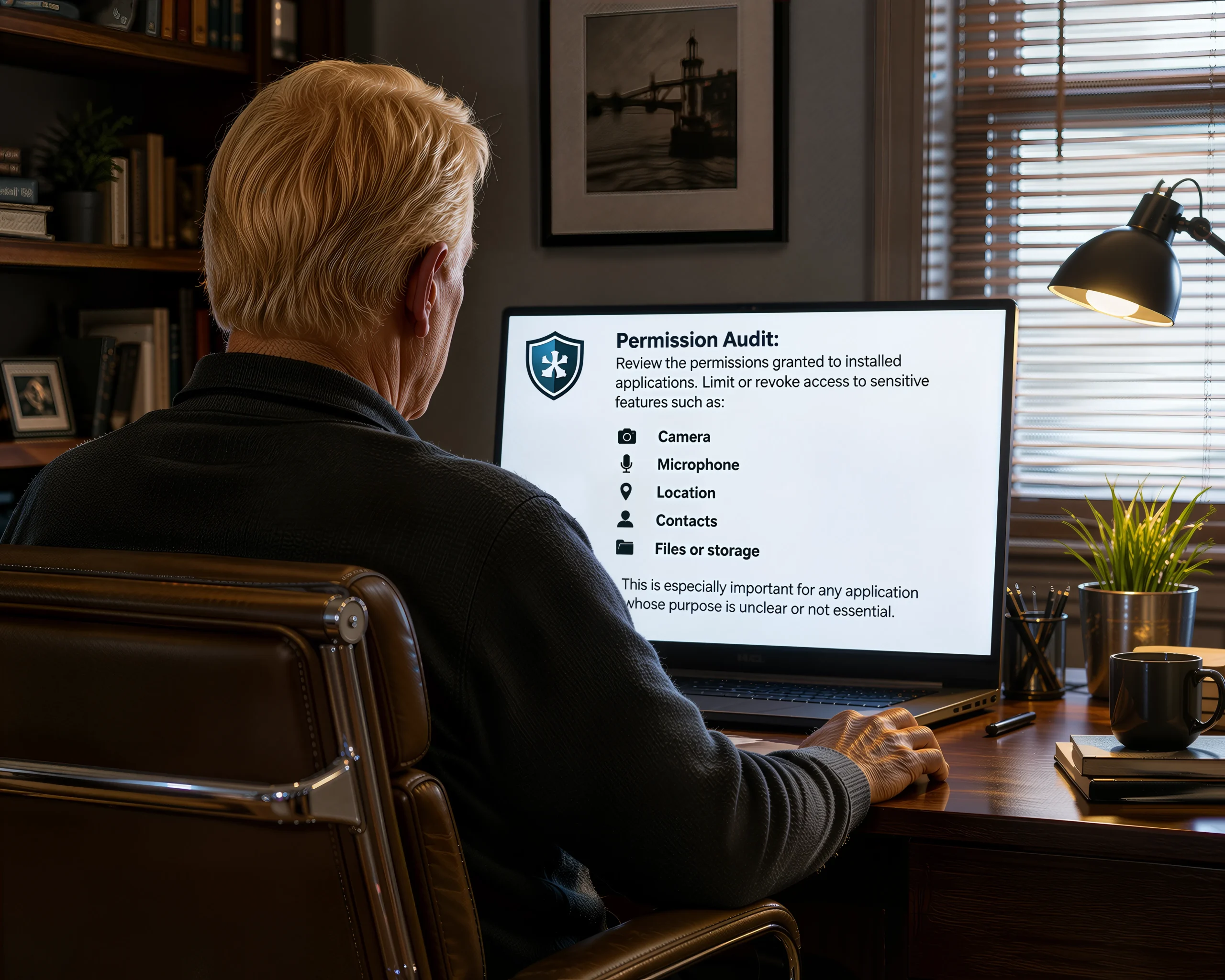
Permission Audit: Review the permissions granted to installed applications. Limit or revoke access to sensitive features such as:
-
Camera
-
Microphone
-
Location
-
Contacts
-
Files or storage
This is especially important for any application whose purpose is unclear or not essential.
Comprehensive Device Scan: Run a trusted antivirus or anti-malware scan to detect unwanted software, hidden threats, or background processes that may be associated with unknown applications.
Credential Precaution (Preventive Step): As a preventive measure, consider updating passwords for your most important accounts, especially email and financial services. This helps reduce potential risk if any sensitive data was accessed.
Where to check: Use the Digital Compass (Point 1: Security & Account Access) to review active sessions. Sign out of any device, location, or login that you do not recognize.
App Store Activity Review: Checking your official app store history can help clarify how an application was installed and whether it was downloaded intentionally.
On Android (Google Play):
-
Open Google Play Store
-
Tap your Profile Icon (top right)
-
Go to Manage apps & device → Manage
-
Filter by Recently Updated or installed apps
On iPhone (iOS):
-
Open the App Store
-
Tap your Profile Photo (top right)
-
Select Purchased
-
Review the list of apps
-
If needed, swipe left on an app and select Report a Problem
Checking Installed Programs
On Windows (PC):
-
Open Settings (Windows key + I)
-
Go to Apps → Installed apps (or Apps & Features)
-
Review the list carefully
-
Look for unfamiliar programs, especially utilities such as “cleaners” or “optimizers”
-
Select and uninstall any program you do not recognize
On Mac:
-
Open Finder
-
Go to the Applications folder
-
Review installed applications
-
Drag unfamiliar apps to the Trash
-
Empty the Trash to complete removal
-
(Optional: check Login Items in System Settings to remove unwanted startup programs)
Important Information for Safe Device Management
This guide provides general, educational information intended to support basic digital hygiene. It is not a substitute for professional technical support.
Most actions described in this section, such as reviewing applications, identifying unnecessary software, or managing installed programs, are routine and reversible. These steps are intended to promote greater awareness, security, privacy, and better understanding of how your device operates.
However, caution should be used before removing any application, as some programs may be important for your device or other services to function properly. If you are uncertain about an application, consider researching its purpose using a trusted source before taking action. If you still
have questions, it is often best to consult a trusted family member, friend, or qualified technical professional.
Taking a few extra moments to verify the purpose of an application before removing it is usually safer than making changes without enough information.
Quick Security Audit: Where to Check for Unauthorized Access
Regularly reviewing your active sessions is an essential habit for maintaining digital privacy and account security. This process helps you identify connected devices and sign out from any sessions that are no longer recognized or no longer in use.
Use the guide below to review and manage active sessions across the most common platforms.
Security Audit Table
| Platform | Device | Navigation Path | Key Action | Status |
|---|---|---|---|---|
| Google / Gmail | PC, Mac, Android, iPhone | Google Account → Security → Your devices | Sign out of any unrecognized device or location | ☐ |
| Facebook / Meta | PC, Mac, Android, iPhone | Settings & privacy → Settings → Password and security → Where you’re logged in | Log out of all unfamiliar sessions | ☐ |
| Android, iPhone, PC, Mac | Settings → Linked devices | Disconnect any unknown web or desktop sessions | ☐ | |
| Android, iPhone, PC, Mac | Accounts Center → Password and security → Login activity | Mark suspicious logins as “This wasn’t me” | ☐ | |
| Apple ID | iPhone, iPad, Mac | Settings → Apple ID → Devices | Remove unknown or outdated devices | ☐ |
Checking Linked Devices in WhatsApp
On iPhone (iOS)
-
Open WhatsApp
-
Tap Settings (bottom right)
-
Select Linked Devices
On Android
-
Open WhatsApp
-
Tap the menu (⋮) in the top right corner
-
Select Linked Devices
On Laptop / PC (WhatsApp Web or Desktop App)
-
Open WhatsApp on your computer
-
Click the menu icon (⋮ or ∨) at the top of the chat list
-
Select Settings
-
Open Linked Devices or Active Sessions
-
Review all connected devices and remove any that are not recognized.
Proactive Communication & Identity Protection
If you detect unusual activity, unfamiliar sessions, or possible compromise, it is recommended to inform trusted contacts as soon as possible. This helps prevent impersonation attempts and reduces the risk of others being targeted by fraudulent messages sent from your account.
By communicating early, you help protect your personal network and interrupt potential fraud chains before they expand further.
Messages or Posts Sent Without Your Knowledge
The Situation: You may notice messages, posts, or account activity that you did not create, authorize, or recognize. This is a serious indicator that your account may have been accessed without permission.
In these cases, the goal is not to assume a specific cause immediately, but to review the situation carefully and take structured protective actions.
Consider These Protective Measures
Secure credentials immediately: Change your password without delay and enable Two-Factor Authentication (2FA) or Multi-Factor Authentication (MFA) if available.
Review active sessions and permissions: Check all logged-in devices, connected applications, and recent account activity. Sign out of any unrecognized sessions.
Scan all devices: Run a trusted antivirus or anti-malware scan on all devices linked to the account.
Notify trusted contacts: Inform your network so they do not interact with fraudulent messages or links sent from your account.
Report to the platform: Contact official support channels and follow the account recovery and security verification process.
Where to Check: Use the Digital Compass (Point 1: Security & Account Access) to locate active sessions, connected devices, and security settings across platforms.
Prevention for the Future
-
Keep strong, unique passwords for each account
-
Enable 2FA or MFA wherever possible
-
Regularly review connected apps and sessions
-
Run periodic device security scans
-
Maintain awareness of unusual account activity
Quick Checklist – Messages Sent Without Your Knowledge
-
[ ] Check Passwords: Have I updated my password to something new and enabled the “second lock” (2FA/MFA)?
-
[ ] Review Active Sessions: Do I recognize every device and app currently connected to my account?
-
[ ] Scan Devices: Have I run a full antivirus/anti-malware scan on my phone, tablet, and computer?
-
[ ] Alert Contacts: Have I informed my family and friends so they don’t click on any suspicious links sent in my name?
-
[ ] Report to Platform: Have I contacted the official support team to let them know my account was misused?
Increase in Mobile Data Usage or Bandwidth
The Situation: You may notice that your mobile data plan is being used much faster than usual, even though you have not downloaded large files or changed your normal usage habits. Unexpected increases in mobile data or bandwidth consumption do not automatically indicate unauthorized access. In many cases, they may result from software updates, cloud backups, streaming services, or other legitimate background activity. However, persistent or unexplained increases deserve further review, as they may also indicate hidden background processes, unwanted applications, or unauthorized data transmission.
Consider These Protective Measures
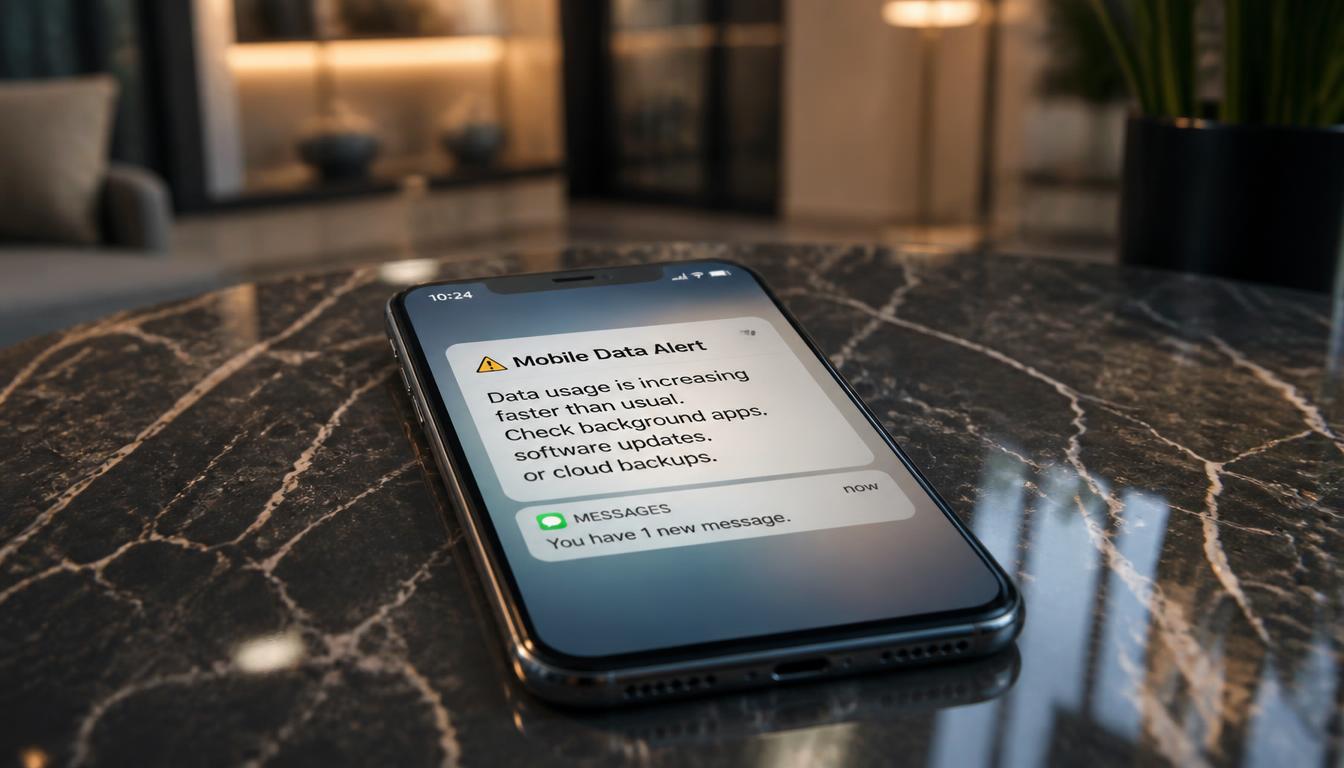
Manual Verification: If you experience unusual consumption, independently and safely open your operating system settings or applications without interacting with the alert displayed on the screen.
Data Usage Review: Check your device’s data usage settings to identify applications consuming unusually high amounts of mobile data or bandwidth. Compare the results with your normal usage patterns and investigate any unexpected activity.
Application Assessment: Review your installed applications and consider removing unfamiliar, outdated, or unnecessary apps, particularly those associated with abnormal data consumption. If you are unsure about an application, research its name online or ask a trusted family member or friend before removing it.
Comprehensive Security Scan: Run a trusted antivirus or anti-malware scan to identify malicious software or unwanted applications that may be transmitting data in the background without your knowledge.
Background Activity Management: Consider limiting background data usage for non-essential applications. This helps improve device performance, conserve battery life and mobile data, and maintain greater control over system resources without affecting essential services.
Network Configuration Review: If unusual activity continues after completing the previous steps, review your network settings to check for incorrect, unfamiliar, or unauthorized configurations. This includes verifying Wi-Fi networks, VPN profiles, and connection settings to ensure they match what you normally use.
Resetting Network Settings (Advanced Step): If configuration issues persist, you may consider resetting your network settings to restore the device’s default network configuration. This can help resolve certain connectivity or setup problems; however, it does not remove malicious software if one is present.
Important Note: Because a reset will erase saved Wi-Fi networks, Bluetooth pairings, VPN settings, and other custom configurations, this step should be used carefully, especially for anyone who may not be familiar with re-entering passwords or restoring personalized settings. When in doubt, it is best to ask a trusted person or qualified support professional for assistance before performing a reset.
Where to Check: Use the Digital Compass (Point 2: Mobile Data & Internet) at the beginning of this guide to locate your device’s data usage settings and identify applications consuming resources in the background.
Understanding Background Activity Management
Managing background activity for non-essential applications is a proactive practice that helps optimize device performance, conserve battery life, reduce unnecessary mobile data usage, and improve privacy. In most cases, background activity is a normal part of how modern smartphones and tablets operate.
This practice is primarily an efficiency and privacy measure rather than a critical security requirement. Reputable security software is designed to help detect many forms of malicious software; however, no security solution can identify every potential threat. Regularly reviewing how applications use your device helps you better understand normal behavior and makes it easier to recognize unexpected changes over time.
How It Works (Simple Explanation)
Many applications continue performing certain tasks even when they are no longer open on your screen. This is known as background activity.
For example:
-
Messaging applications periodically check for new messages.
-
Email applications synchronize incoming mail.
-
Weather applications automatically update forecasts.
-
Photo applications may back up pictures to cloud storage.
-
Calendar applications refresh reminders and upcoming events.
These activities are generally normal and expected. However, some non-essential applications may continue using mobile data, battery power, or device permissions without providing meaningful value to the user.
Non-Essential Applications
Non-essential applications are those that are rarely used or are not required for your everyday activities. Examples include:
-
Unused games.
-
Promotional applications.
-
Coupon applications.
-
Advertising-supported applications that are no longer needed.
-
Trial applications that you no longer use.
Restricting background activity does not uninstall or disable these applications. Instead, it simply limits their ability to consume mobile data, battery power, and certain system resources while they remain closed.
Essential applications, such as messaging services, email, navigation, banking, healthcare, or emergency-related applications, should generally continue running in the background to ensure notifications and important functions operate as expected.
Important Information for Safe Device Management
This guide provides general, educational information intended to support basic digital hygiene. It is not a substitute for professional technical support.
Most of the measures described in this section, such as reviewing data usage, limiting background activity, or removing non-essential applications, are routine, safe, and reversible. These actions are intended to promote greater awareness, privacy, security, and device efficiency.
However, certain actions mentioned earlier, such as resetting network settings, are advanced procedures. These steps may remove saved Wi-Fi networks, Bluetooth pairings, VPN configurations, or other networkrelated settings. Because of this, they should not be considered part of routine digital hygiene.
If you are uncertain about a particular setting, application, or action, it is generally best to leave the setting unchanged until you can verify its purpose or consult a trusted family member, friend, or qualified technical professional. Taking a few extra moments to confirm a change before applying it is often the safest and most confident approach.
How to Limit Background Activity
On iPhone (iOS)
Settings → General → Background App Refresh
or
Settings → Cellular → Select an application to review its mobile data usage.
On Android
Settings → Apps → Select the application → Mobile Data & Wi-Fi (or Battery, depending on the device) → Restrict Background Data or Background Activity for non-essential applications.
Key Principle
You are not removing the application. Instead, you are placing it into a more controlled state until you decide to use it again.
This simple adjustment helps preserve battery life, reduce unnecessary mobile data usage, improve overall device performance, and maintain greater awareness of how your device uses its resources, while allowing essential applications to continue functioning normally.
Benefits of Managing Background Activity
Battery Conservation: Reduces unnecessary power consumption by limiting applications that continue running when they are not actively being used.
Reduced Mobile Data Usage: Helps prevent non-essential applications from consuming mobile data unnecessarily.
Improved Device Performance: Frees system resources that can improve responsiveness and overall efficiency.
Improved Focus: Reduces unnecessary notifications, promotional alerts, and other distractions generated by low-priority applications.
Greater Awareness: Regularly reviewing background activity helps you become more familiar with your device’s normal behavior, making unexpected changes easier to recognize in the future.
Point of Return
Any changes you make to background activity settings can be reversed at any time. If you later decide that an application should resume running in the background, simply return to the same settings and re-enable the option.
Remember, you are adjusting how the application operates, not permanently removing or damaging it. These settings are designed to give you greater control and can be modified whenever your needs change.
Quick Response Reminder
If you notice an unexpected increase in mobile data or bandwidth usage, it’s a good idea to review it calmly and promptly. Many situations have simple, legitimate explanations, such as software updates, cloud synchronization, or streaming activity. A brief, structured check helps confirm that everything is working as expected and supports the overall performance, privacy, and security of your digital environment.
Remember: Background activity is a normal feature of modern devices. The goal is not to stop every application from running in the background, but to understand which applications truly need it and limit those that do not.
A Practical Security Principle: Review first, conclude later. Unexpected activity deserves verification before assuming that a device has been compromised.
Device Performance Issues: Slow Operation, Freezing, or Unexpected Restarts
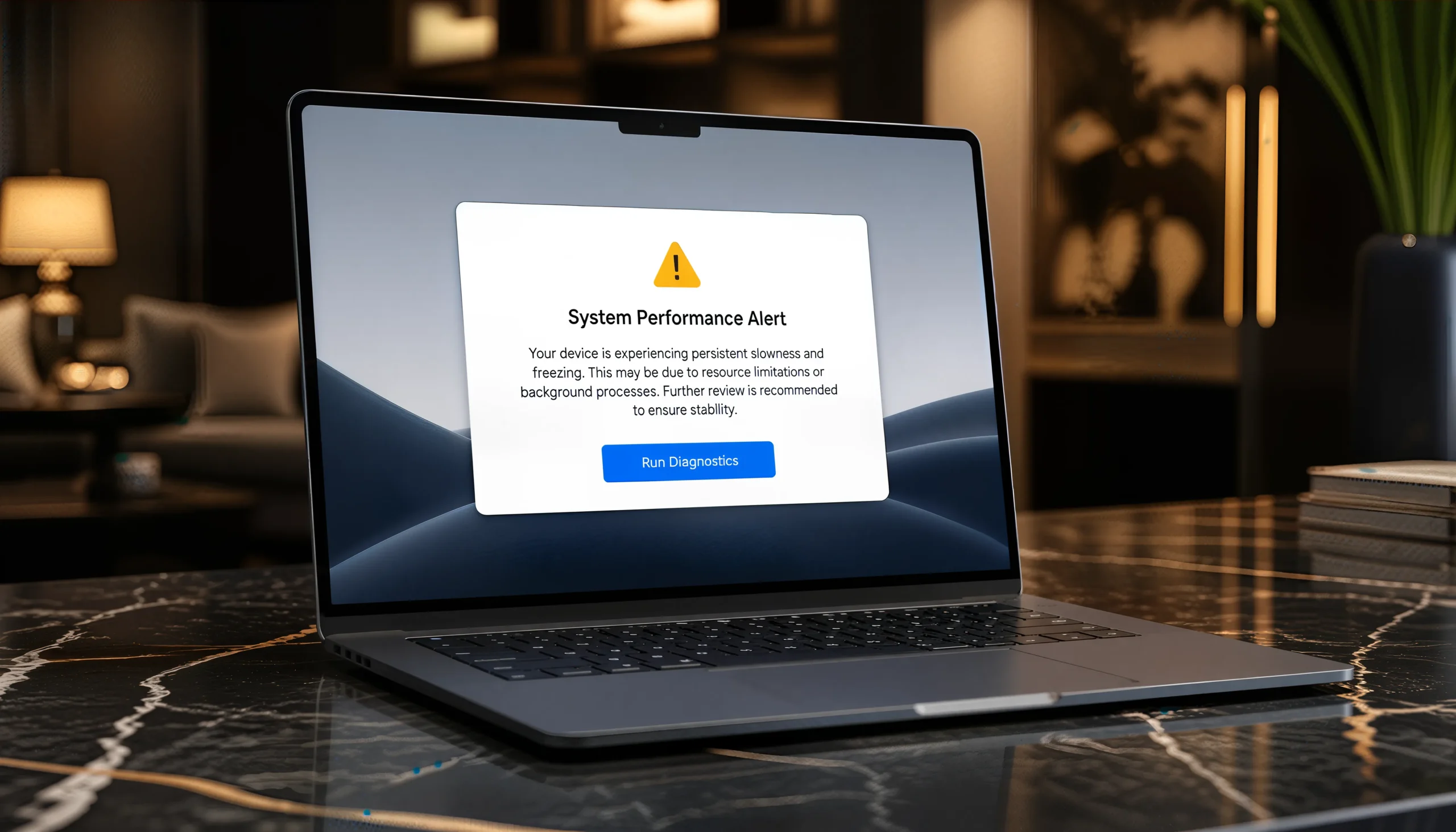
The Situation: A device may occasionally slow down, freeze, or restart due to routine system processes, background activity, software conflicts, compatibility issues, or resource limitations. These situations are common during everyday use. When performance issues become persistent or difficult to explain, reviewing certain settings and system conditions can help clarify what may be affecting overall stability.
Protective Measures to Consider
-
Manual Verification: If you experience slowdowns or freezes, independently and safely open your operating system settings or security applications without interacting with the alert displayed on the screen.
-
Comprehensive Security Scan: Use trusted security software to perform a full system scan and review items that may affect device performance.
-
Software Audit: Review installed applications and consider removing those that are unfamiliar, unused, or no longer required after confirming their purpose. Avoid removing programs necessary for normal device operation.
-
Proactive Updates: Keep your operating system and applications updated to maintain stability, improve compatibility, and apply available improvements.
-
Resource Assessment: Review available storage and memory usage to ensure your device has sufficient capacity for normal operation. Removing unnecessary files or closing unused applications may help improve performance.
-
Controlled System Reset (Advanced Step): If performance issues continue after basic troubleshooting steps, a factory reset can be considered as a more advanced recovery option. Always back up essential data beforehand. A reset may help resolve certain software-related issues, but long-term stability still depends on regular maintenance practices such as updates, secure authentication, and careful application management.
Because a factory reset removes personal configurations and requires re-entering account information, this step should be used thoughtfully, especially for anyone who may not be familiar with restoring settings manually. When in doubt, it is best to consult a trusted person or qualified technical support professional before proceeding.
- Where to check: Use the Digital Compass (Sections: 5. System Performance & Background Activity, 3. Managing Apps & Programs, and 6. Storage & File Control) to locate performance-related settings, review resource usage, manage applications, and identify conditions that may affect device stability across different platforms. These sections help identify applications, settings, and resources that may influence your device’s performance.
Important Information for Safe Device Management
This guide provides general, educational information intended to support basic digital hygiene. It is not a substitute for professional technical support.
Most measures described in this section, such as reviewing installed applications, checking resource usage, applying updates, or removing non-essential software, are routine, safe, and reversible. These actions are intended to support everyday maintenance, improve stability, and promote greater awareness of normal device behavior.
However, certain actions mentioned earlier, such as performing a controlled system reset, are advanced procedures. A reset may remove personal configurations, application settings, or locally stored information depending on the device. Because of this, resets should not be considered part of routine digital hygiene and should only be used when simpler troubleshooting steps have not resolved the issue.
When reviewing device performance, it is generally recommended to begin with the least disruptive steps. If you are uncertain about a particular setting, application, or change, maintaining the current configuration is often the most appropriate approach until its purpose is confirmed or reviewed with a trusted family member, friend, or qualified technical professional.
Taking a few extra moments to confirm a change before applying it is often the safest and most confident approach.
Key Principles
-
Reliability: Maintain necessary applications and system processes to support stable performance.
-
Awareness: Understanding normal device behavior helps identify changes with confidence.
-
Efficiency: A well-maintained device supports reliable performance for essential activities such as communication, navigation, and financial services.
-
Practical Security Principle: Observe first, verify second, and take action based on information, not assumptions.
Pop-Ups or Invasive Ads Appearing Outside Normal Browsing Activity
The Situation: Pop-ups or intrusive advertisements appearing when no browser is open may indicate that certain software, such as adware, is operating in the background. This behavior can often be addressed by reviewing browser settings, installed applications, and basic system configurations to restore a more controlled and predictable browsing environment.
Protective Measures to Consider
Browser Extension Review: Verify installed browser extensions and remove any that are unfamiliar, recently added, or no longer required.
Application Audit: Review recently installed applications and uninstall any that appear unrelated to your intended downloads or regular use.
Adware & Malware Scan: Use trusted security software to perform a full system scan and review items that may affect browser behavior or display intrusive advertisements.
Ad-Blocking Solution: Consider using reputable ad-blocking solutions to reduce exposure to intrusive or potentially unwanted advertisements.
Where to Check: Use the Digital Compass (Point 4: Browser Privacy) to locate and manage browser extensions, privacy settings, and permissions across different platforms.
Ad Blockers vs. Anti-Malware: Understanding the Difference
| Tool | Primary Purpose | Helps Protect Against | Does Not Replace |
|---|---|---|---|
| Ad Blocker | Reduces unwanted advertisements and blocks many deceptive popups before they appear. | Misleading ads, intrusive popups, malvertising, tracking scripts, and some fraudulent websites. | Antimalware or antivirus software. It does not remove malware already installed on your device. |
| Anti-Malware / Antivirus | Detects, blocks, and removes malicious software that may affect your device. | Viruses, spyware, ransomware, Trojans, malicious downloads, and other harmful software. | An ad blocker. It does not stop all advertisements or tracking technologies while browsing. |
Key Takeaway
Neither tool replaces the other. They provide different layers of protection that work together.
-
Ad Blocker: Helps prevent exposure to many online threats before you click.
-
Anti-Malware: Protects your device if malicious software attempts to reach or infect it.
Best Practice
For stronger everyday protection, consider using:
-
A trusted ad blocker.
-
A trusted anti-malware or antivirus.
-
Regular software updates.
-
Strong passwords with Two-Factor Authentication (2FA) or Multi-Factor Authentication (MFA).
-
Safe browsing habits and careful verification before clicking unfamiliar links or downloading files.
Key Principles
Reliability: Maintain only necessary and authorized browser tools to support stable performance.
Awareness: Regularly reviewing normal device behavior helps identify unexpected changes with greater confidence.
Practical Security Principle: Observe first, verify second, and take action based on information, not assumptions.
Browser Maintenance: Clean-Up vs. Reset

Browser Clean-Up (PC & Mac): Removes temporary data such as browsing history, cookies, and cached files while keeping your settings and extensions intact. This helps improve performance and resolve minor browsing issues.
Browser Reset (PC & Mac): This is an advanced action. It restores the browser to its factory default configuration, which means current customizations will be removed. Use this option only when simpler methods, such as a cleanup, have not resolved the issue. Resetting removes unauthorized extensions, modified settings, and unwanted permissions.
Clean-Up & Browser Reset Processes
Quick Access: Windows: Ctrl + H Mac: Command (⌘) + Y
Clean-Up Process (PC & Mac): Use Ctrl + Shift + Del (Windows) or Command + Shift + Backspace (Mac) to access cleanup settings. Select “Clear browsing data,” choose the items to remove, and set the time range to “All Time.”
Reset Process (Chrome Example): Navigate to Settings → Reset settings → “Restore settings to their original defaults.” Confirm the reset. Bookmarks and saved favorites remain intact.
Mobile Devices (Android & iPhone)
Mobile platforms focus on managing stored data rather than performing full browser resets.
iOS: Clear cache and browsing data manually or by reinstalling apps.
Android: Clear cache and data directly from system settings or browser menus.
Process: Begin with basic cleanup steps such as clearing the cache, deleting unused apps, and managing storage. Full device resets are typically reserved for more complex issues.
Reset Golden Rule
If your device is functioning properly for your everyday tasks (banking, communication, etc.), you do not need to make any changes. These measures are intended only for situations involving unusual or persistent behavior.
Important Information for Safe Device Management
This guide provides general, educational information intended to support basic digital hygiene. Routine actions, such as reviewing extensions, clearing temporary data, or uninstalling unfamiliar applications, are typically safe and reversible.
However, some actions described in this guide, such as browser resets, are advanced procedures. These steps can modify or remove existing settings and, in certain cases, may be difficult or impossible to fully reverse once completed. For this reason, resets should not be considered part of routine digital hygiene.
If you do not fully understand the impact of a reset, or if you do not recognize the settings you are reviewing, do not proceed. Avoid making adjustments based on uncertainty or assumptions. In these situations, consider seeking assistance from a trusted family member, a knowledgeable friend, or a qualified technical professional before making any modifications. A brief review from someone you trust is often the safest way to prevent unintended disruptions or temporary loss of access to your accounts.
Before You Consider a Browser Reset 6-Step Safety Checklist
If you have the knowledge or trusted assistance to perform a browser reset, consider completing this safety checklist first. These steps help maintain control, reinforce security, and ensure that the reset is applied only when appropriate.
Phase 1: Preparation
-
[ ] Device Readiness: My PC, phone, and tablet are nearby and fully charged.
-
[ ] Trusted Equipment: I am using only devices that I personally own and recognize.
Phase 2: Security Review
-
[ ] Browser and Applications: I have reviewed and removed unknown extensions and uninstalled suspicious or unnecessary applications.
-
[ ] Security Scan: I have completed a full antivirus or anti-malware scan using trusted software.
Phase 3: Credential Update
-
[ ] Password Refresh: I have changed passwords for all important accounts, using strong and unique combinations.
-
[ ] Secure Storage: I have recorded my new passwords in a secure physical location that only I can access.
Phase 4: Two-Factor Activation
-
[ ] Method Selection: I have chosen my preferred 2FA method (Authenticator App, SMS, or Security Key).
-
[ ] Account Coverage: I have activated 2FA Verification on all important accounts.
Phase 5: Recovery Options
-
[ ] Backup Codes: I have printed or securely stored my backup codes.
-
[ ] Recovery Contacts: I have added a trusted contact for account recovery, when supported by the platform.
Phase 6: Final Verification
-
[ ] Access Test: I have signed back in using my updated password and my 2FA method.
-
[ ] Security Confirmation: My device is clean, my accounts are protected, and my authentication controls are active.
Success Reminder
-
Device clean.
-
Passwords updated.
-
2FA active.
-
Recovery options ready.
-
Confidence Building: If you do not feel fully comfortable with the 2FA process at first, consider practicing on a newly created or secondary account. This allows you to become familiar with the steps in a safe environment before applying them to your primary accounts.
Checklist: Changing Your Phone or Phone Number (2FA)
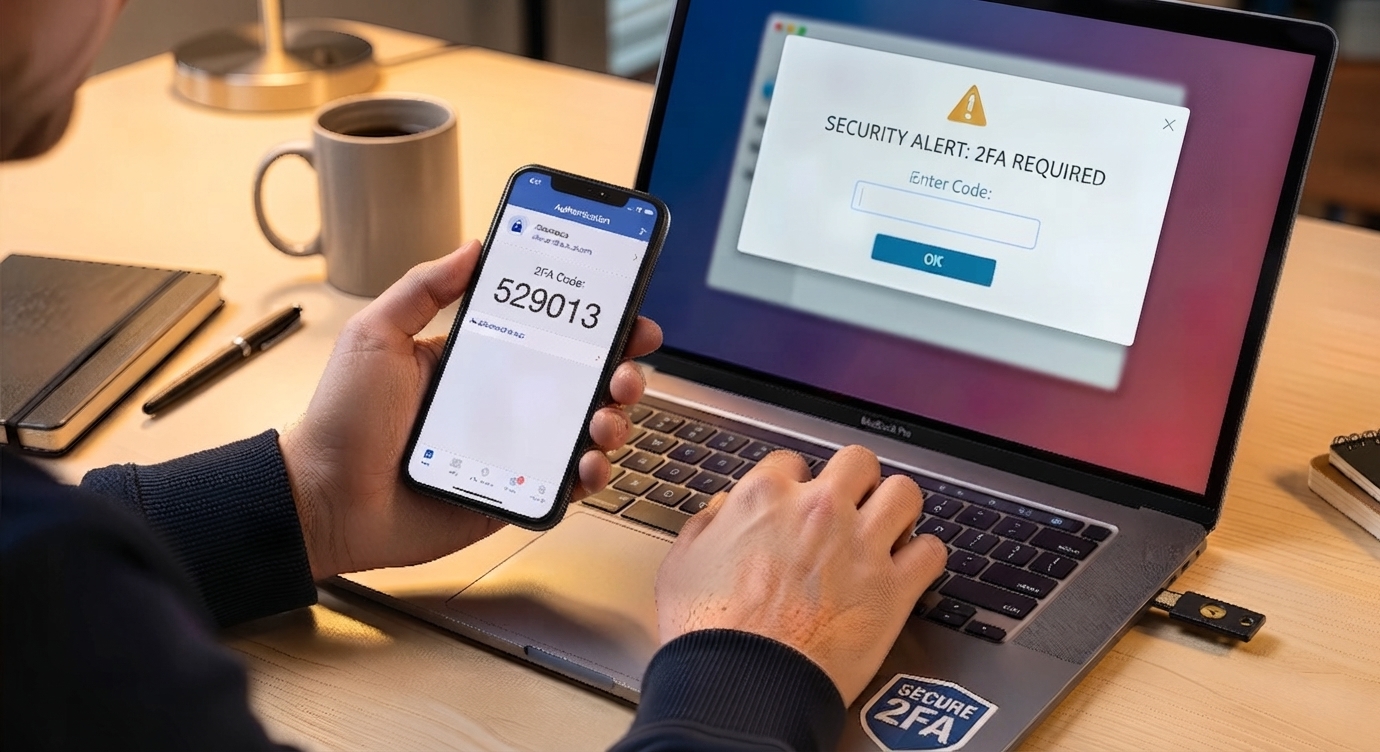
Checklist: Changing Your Phone or Phone Number (2FA)
This checklist is correctly structured as a preparation sequence for safely changing your phone, phone number, or 2FA method. It reinforces control, prevents accidental loss of access, and supports secure account recovery.
1. Before Changing Your Device
-
[ ] Access Check: I still have access to my current phone.
-
[ ] Account Inventory: I know which accounts use my number for 2FA.
-
[ ] Backup Access: I have access to my recovery email or authenticator app.
2. Protecting Account Access
-
[ ] Pre-Login: I signed into my account before making any changes.
-
[ ] Verification Status: I verified that 2FA is currently active.
-
[ ] Method Review: I checked whether I am using SMS, an authenticator app, or a security key.
3. Changing Your Number (If Applicable)
-
[ ] Add First: I added the new number before removing the old one.
-
[ ] Verification: I confirmed the new number using a verification code.
-
[ ] Don’t Delete Rule: I did not remove the old number until the new one was confirmed.
4. Changing Your Phone
-
[ ] App Setup: I installed the authenticator app on the new device.
-
[ ] Transfer: I transferred or recovered my 2FA codes.
-
[ ] Live Test: I successfully tested signing in from the new phone.
5. Avoiding Loss of Access
-
[ ] Backup Codes: I saved my backup codes in a secure physical location.
-
[ ] Old Device Safety: I did not wipe the old device until I confirmed full access on the new one.
-
[ ] Redundancy: I did not rely solely on SMS if a more secure option was available.
6. Final Verification
-
[ ] Full Access: I can sign in with the new phone or number.
-
[ ] Code Check: I am correctly receiving 2FA codes.
-
[ ] Secure Exit: The old device is no longer needed or has been securely signed out.
Lost Access to Your Two-Factor Authentication (2FA)
The Situation: If you no longer have access to your phone, authenticator app, security key, or the phone number used for Two-Factor Authentication (2FA), remain calm. Losing access to a verification method does not necessarily mean the account is permanently inaccessible. Most platforms provide secure, structured recovery options designed to help you regain access safely.
Recovery procedures vary by provider and may require identity verification. For your protection, recovery should always be completed through the service’s official process.
Steps to Consider
Stay Calm: Many services include built-in recovery procedures to help restore access securely.
Check for Backup Codes: If you previously saved or printed your backup codes, use one of them to sign in.
Try an Alternative Verification Method: Some platforms allow identity verification through other trusted methods, such as a recovery email address, a trusted device already signed in, a security key, or another registered authentication method.
Use the Official Account Recovery Process: If no verification method is available, begin the platform’s official recovery process and follow the instructions carefully.
Prepare for Identity Verification: Some providers may request additional information to confirm your identity. This step protects your account from unauthorized access.
Update Your Recovery Options: Once access has been restored, review and update your recovery phone number, recovery email address, backup codes, and authentication methods.
Important Reminder
Never attempt to bypass Two-Factor Authentication through unofficial services or individuals claiming they can recover your account. Always use the platform’s official recovery process.
Key Principle
The goal of account recovery is to restore access securely while preventing unauthorized access.
Security Protection Was Disabled Unexpectedly
The Situation: Receiving a notification that your antivirus, firewall, or another security feature has been disabled without your action indicates that something in your device’s security settings has changed and deserves timely attention. Many different factors can cause this behavior, including routine system updates, configuration adjustments, expired subscriptions, or software conflicts. Another possible cause is interference from unwanted or malicious software attempting to disable protection systems to avoid detection, but this is only one possibility among several. Rather than assuming the reason, treat the alert as a reminder to verify your device’s security status, identify what changed, and confirm that your protection features remain active.
Possible Causes Behind the Deactivation
-
Malware Interference: Malicious software may attempt to disable antivirus or firewall protections to avoid detection.
-
Hardware or Driver Incompatibility: Features such as Core Isolation or Memory Integrity may turn off automatically if Windows detects incompatible drivers or components. This is a protective measure, not a sign of compromise.
-
Tools that Modify System Behavior: System cleaners or optimization utilities sometimes alter Windows services or registry entries aggressively, which can disable the Security Center or related protections.
-
Expired Antivirus Subscription: Some security solutions reduce or disable protection when the subscription expires, prompting the user to renew or reactivate the service.
-
Conflicting or Outdated Security Software: Running multiple antivirus programs or using outdated versions can cause automatic deactivation to avoid interference between tools.
-
Unauthorized Remote Access: If someone gains remote access to the device, they may disable security tools to maintain control. This is less common but important to consider when other signs of unusual activity are present.
Consider These Protective Measures
After reviewing the possible causes behind the deactivation of your security tools, the next step is to strengthen your defenses. Regardless of the cause, it is important to apply preventive and corrective measures that help maintain the integrity of your device in the event of any securityrelated issue.
-
Immediate Protection Restoration: Reactivate your antivirus or firewall as soon as possible.
-
Full System Security Scan: Run a complete scan using trusted security software to detect potential threats or unwanted programs.
-
Credential Reinforcement: Update passwords for critical accounts (such as email, banking, and social media) and confirm that Two-Factor Authentication (2FA) remains active where available.
-
Security Review: Use your system’s security dashboard or activity monitor to confirm that your antivirus, firewall, and other security features are active while reviewing running applications or processes for unusual activity.
-
System and Security Updates: Keep your operating system and security software fully updated to maintain protection against known vulnerabilities.
Prevention Tips for the Future
-
Use only one trusted antivirus solution.
-
Download software exclusively from verified sources.
-
Regularly review security settings.
-
Enable automatic system updates.
-
Exercise caution with links, emails, and popups.
These practices help maintain consistent protection and reduce exposure to threats.
Core Message
-
Action Over Panic: Security alerts are signals for verification and corrective action.
-
Your Strength: Awareness and simple verification steps form a strong layer of protection.
Important Information for Safe Device Management
This guide provides general, educational information intended to support basic digital hygiene. It is not a substitute for professional technical support.
Most of the measures described in this section, such as reviewing security settings, checking recent changes, confirming protection status, or restoring antivirus functions, are routine, safe, and reversible. These actions are intended to promote awareness, stability, and confidence when reviewing device behavior.
However, certain actions mentioned later, such as Safe Mode Verification, are advanced procedures. These steps may alter how the device loads applications or services and should not be considered part of routine digital hygiene.
If you are uncertain about a particular setting, application, or action, it is generally best to leave the setting unchanged until you can verify its purpose or consult a trusted family member, friend, or qualified technical professional. Taking a few extra moments to confirm a change before applying it is often the safest and most confident approach.
Primary Response Steps When Security Protection Deactivates Unexpectedly
1. Protection Reset Check: Try restoring protection directly from your antivirus or firewall.
-
Open your security software
-
Look for “Enable,” “Turn On,” or “Restore Protection”
-
See if protection stays active
This step does not identify the cause of the deactivation. It only helps determine whether protection can be restored normally or if further review is needed.
2. Security Dashboard Review: Use your system’s built-in security dashboard.
-
Windows: Windows Security
-
Mac: Privacy & Security
Check whether your firewall, antivirus, and updates show “On,” “Disabled,” or “Managed by another application.” This helps identify conflicts, expired protection, or cases where another trusted security tool is managing the feature.
3. Recent Changes Audit: Review what changed in the last 24–48 hours.
-
New apps
-
New browser extensions
-
Recent downloads
-
System updates
This is one of the most effective and least technical ways to understand why protection may have turned off.
4. Network Safety Check: Consider where the deactivation happened.
Common situations to review include:
-
Public Wi-Fi
-
Unsecured networks
-
Shared hotspots
Some security features may change their behavior, display warnings, or apply additional restrictions depending on network conditions, connection limitations, or safety policies. In certain cases, connecting to one of these networks can even cause an app to close or stop responding temporarily. This does not necessarily mean that malware is present or that the device has been compromised.
Reviewing the network environment helps determine whether the change may have been related to the connection itself rather than a problem with the device. Understanding the context where the change happened is an important step before taking further action.
5. Device Password Update: If you suspect unauthorized access, including situations where someone else may have physically handled your phone, laptop, or tablet and may have unintentionally disabled protection, update the device password to ensure that only you can access it. This helps protect the device from accidental or intentional changes and reduces the risk of continued unauthorized access.
6. Security Software Integrity Check: These are among the most common legitimate causes of unexpected deactivation and should be ruled out before assuming malicious activity. Verify the status of your security tools:
-
Is the antivirus expired?
-
Is it outdated?
-
Are two antivirus programs installed at once?
These are very common causes of unexpected deactivation.
7. Safe Mode Verification (Advanced)
If basic troubleshooting does not resolve the issue, restarting the device in Safe Mode may help determine whether another application is interfering with your security software. Safe Mode loads only essential system components, which makes it easier to see whether the problem comes from another program, a recent change, or the security tool itself.
-
If the antivirus works normally in Safe Mode, another program may be causing the issue.
-
If the problem continues in Safe Mode, the cause may be related to the security software or the operating system itself.
Safe Mode is an advanced step because it changes how the device starts and may look unfamiliar to some users. If you are not comfortable using Safe Mode, consider seeking assistance before performing this step.
8. Trusted Person Review: A core Security principle: If something feels unclear, review it with a trusted family member, friend, or professional before making changes. This is a valid and safe option, especially for seniors.
Simple Safety Check (Quick Self-Assessment)
Run this quick check whenever you see a security alert or once a month for peace of mind.
-
[ ] Antivirus Status: Confirm your antivirus shows ON and is fully up to date.
-
[ ] Firewall Status: Ensure your firewall is Enabled for both private and public networks.
-
[ ] Protection Stability: Verify that protection remains ON and does not turn off on its own.
-
[ ] Recent Changes: Recall any new apps, browser extensions, downloads, or system updates from the last 24–48 hours.
-
[ ] Network Context: Identify if you were using public Wi-Fi or an unfamiliar network when the alert appeared.
-
[ ] Account Safety: Check for any unexpected login alerts or security warnings regarding your accounts.
-
[ ] Next Step: If any item above cannot be confirmed, review the relevant section of this guide, ensure your security software is up to date, perform a full security scan, and seek assistance if needed before making additional system changes.
Device Behavior Changes – Battery Drains Faster Than Usual
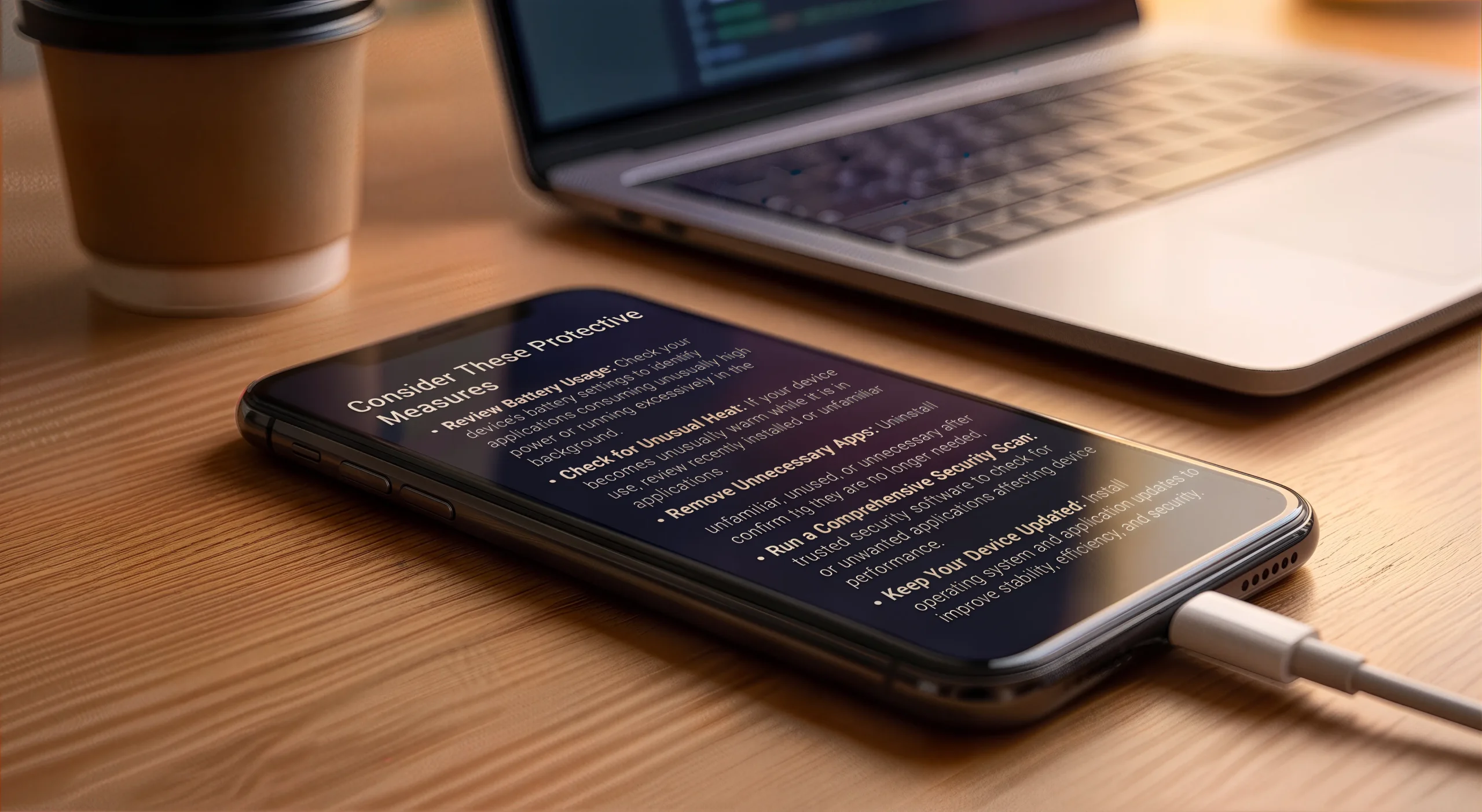
The Situation: A mobile device’s battery naturally declines over time, but a sudden or unusual drop in battery life, especially with minimal use, often indicates unexpected background activity. This may include normal system processes, apps running without your awareness, or in some cases unauthorized or unwanted software. Treat rapid battery drain as a signal to review your device’s recent activity and confirm that everything is functioning normally.
Consider These Protective Measures
-
Review Battery Usage: Check your device’s battery settings to identify applications consuming unusually high power or running extensively in the background.
-
Check for Unusual Heat: If your device becomes unusually warm while idle or during light use, review recently installed or unfamiliar applications.
-
Remove Unnecessary Apps: Uninstall unfamiliar, unused, or unnecessary applications after confirming they are no longer needed.
-
Run a Comprehensive Security Scan: Use trusted security software to check for malicious or unwanted applications affecting device performance.
-
Keep Your Device Updated: Install operating system and application updates to improve stability, efficiency, and security.
-
Factory Reset (Advanced): If significant issues persist after basic troubleshooting, a factory reset may be considered. Always back up important data beforehand, as this process erases device contents and may not be necessary in every situation.
-
Important Note: Before performing a factory reset, take time to understand what the process involves and whether it is appropriate for your situation. If you are unsure or do not feel comfortable performing this step, consider seeking assistance from a trusted family member, friend, or qualified technical professional.
-
Where to Check: Use the Digital Compass (Point 2: Mobile Data & Internet and Point 5: System Performance) to review battery usage, background activity, and overall system behavior.
Or Go to Battery Usage Steps
Android
-
Open Settings.
-
Tap Battery or Device Care.
-
Tap Battery Usage.
-
Review apps with high usage, especially those you haven’t opened today.
iPhone
-
Open Settings.
-
Tap Battery.
-
Wait for Battery Usage by App to load.
-
Look for apps showing high usage even if you haven’t used them recently.
Interface Updates
If an app you haven’t used recently such as a game or social app, shows high battery consumption, review its activity, limit background usage, or remove it if no longer needed.
Quick Response Reminder
Rapid battery depletion without changes in your habits deserves attention. Reviewing battery usage and recent activity helps identify whether the cause is normal or requires further action.
Prevention Tips for the Future (Battery & Power Security)
-
Close apps you’re not using: Social media, games, and shopping apps often stay active in the background, and when the processor works more than necessary, the device heats up.
-
Turn off features you don’t need: GPS, Bluetooth, and Wi-Fi use battery even when you’re not using them.
-
Install apps only from official stores: This avoids apps that drain battery or cause problems.
-
Restart your phone every two days: A simple restart clears hidden processes and improves performance.
-
Back up your photos and files once a month: Keeps your memories safe if something goes wrong.
CAS Maintenance Checklist (3-Minute Version)
-
[ ] Battery is not dropping unusually fast.
-
[ ] Device is not overheating during idle use.
-
[ ] No unknown or suspicious apps are active.
-
[ ] No recent downloads feel unfamiliar or unsafe.
-
[ ] Battery usage shows only apps I recognize.
-
[ ] System is updated and running normally.
App Permissions: Staying in Control
Many apps ask for access to features they do not need, such as your camera, microphone, contacts, or location. Taking a moment to check these permissions helps you stay in control of your privacy and prevents apps from accessing sensitive information without your awareness.
Apps request permissions at different moments. Understanding when these requests appear helps you make safer decisions.
Understanding Permission Requests
Installation Requests: Some apps ask for permissions before you install them. Review these requests carefully. If an app asks for access it doesn’t need to function, consider choosing a different app.
Feature-Based Requests: Modern devices often ask for permission only when you use a specific function (for example, when you tap the camera button inside the app). This is a helpful signal, if a request doesn’t make sense for what you are doing, you have the right to select “Deny” or “Don’t Allow.”
The CAS Permission Principle
You are the authority over your device. You are never obligated to grant access to your private data. If you have previously granted a permission that you no longer feel comfortable with, you can revoke it at any time in your device settings.
A few seconds of permission review can protect your privacy for years.
Quick Audit Steps
-
Android: Settings → Apps → [Select App] → Permissions
-
iPhone (iOS): Settings → Privacy & Security → Review app access or Settings → [Select App] → Permissions
Important note
Permission changes should be made thoughtfully and based on an understanding of how each application is used. Some permissions, such as access to the camera, microphone, location, or storage, may be necessary for an application to function as intended. If you are unsure whether a permission is required, consider reviewing its purpose through a trusted source before making changes.
Storage Appears Full Without Reason
Storage Appears Full Without Reason
The Situation: Your device may show that storage is full even when you haven’t saved new large files, photos, or videos. While normal system growth can occur over time, an unexpected or unexplained increase in storage usage often indicates hidden files, background processes, or unauthorized software occupying space. Treat this as a prompt to review your storage activity calmly and verify what is consuming space.
Storage Security & Safe Deleting
-
Use Reputable Apps Only: Download cleaning or utility tools exclusively from official stores.
-
Review Items Before Cleaning: Always expand categories and check what will be deleted. Cleaning tools sometimes mislabel personal content as “junk.”
-
Protect Photos and Documents: Deselect personal folders (DCIM, Pictures, Documents) before running deep cleaning tools.
-
Important Note: Before running any “cleaning” tools, always deselect your DCIM (Digital Camera Images, this is your camera photo folder), Pictures (your gallery photos), and Documents folders. These folders contain your personal memories and important files. Many automated cleaning apps do not understand what is personal or valuable, and may delete everything inside these folders by default. Always review what is being removed to avoid permanently losing your private photos and documents.
-
Check App Storage Growth: Some apps store hidden data, offline files, or cached media that can fill storage quickly.
-
Clear Cache¹ Safely: Cache can grow quickly and is generally safe to clear.
-
Restart your device: A restart clears temporary files and stops processes stuck in the background.
¹ What is Cache?
Cache is a collection of temporary files (like images and small bits of data) that apps save to load faster the next time you open them. Think of it as a “shortcut folder” your device uses to speed things up.
-
Why it’s safe: Clearing cache does not delete your photos, documents, messages, or personal settings. It only removes temporary shortcuts. Apps will recreate them automatically when needed.
-
How to clear it: You can clear cache manually (Settings → Apps or Storage → Select App → Clear Cache) or simply keep the cache option selected when your cleaning app suggests it. Both methods are safe and help free space.
Pro-Tip
If an app requests Advanced Permissions or Full Disk Access, pause and review your files manually first. Granting full control should only occur when you clearly understand what the app intends to modify or remove.
Consider These Protective Measures
-
Manual Folder Review: Open your storage and look for folders you don’t recognize or files that suddenly became very large. If a folder looks unfamiliar, leave it untouched.
-
Run a Security Scan: A trusted security app can detect apps storing hidden data, bloatware, or background processes that fill storage without showing visible files.
-
Use Safe Cleaning Tools: Choose cleaning apps from official stores only. Before deleting, expand each category and confirm what will be removed. Avoid apps that promise “deep cleaning” or “full optimization.”
-
Ask for Professional Help: If you see unknown partitions, strange folders, or files you cannot identify, ask a trusted technician. Never delete system areas on your own.
-
Where to Check: Use the Digital Compass (Section 6: Storage & File Control) to review storage usage, identify large files or unfamiliar folders, and manage available space safely.
Important Information for Safe Device Management
Routine digital hygiene includes simple, reversible actions such as reviewing apps, checking permissions, or clearing cache. In contrast, modifying system folders or core directories is not part of routine maintenance and should be avoided. These system areas are part of the core operating environment of your device.
They are essential to how the operating system starts, loads applications, manages updates, and maintains normal device functionality. For this reason, we strongly discourage modifying, deleting, or attempting to “clean” files inside these locations. Even small changes can cause instability, data loss, or prevent the device from starting correctly.
If you encounter unfamiliar system folders, unusual partitions, or files you do not recognize, leave them untouched and consider seeking assistance from a trusted technician. Avoid making changes unless you fully understand their purpose and impact.
Critical Human Factor Warning (System Areas You Should NOT Touch)
These areas are essential for device stability and should not be modified:
-
Windows (PC): Avoid deleting or modifying Windows, System32, Program Files, or Program Files (x86).
-
macOS (Mac): Do not alter Library, System, Applications, or root-level system directories.
-
iPhone (iOS): Avoid deleting system files or configuration profiles through file manager apps.
-
Android: Do not delete system folders such as Android, obb, or Data.
-
General rule: Never delete folders you did not create or clearly recognize.
-
Core safety principle: If unsure about a file or folder, leave it unchanged.
Globally Recognized Best Practices
We have explored these best-practice guidelines and, by applying them, we have expanded their scope to give them the emphasis and caution they deserve. The objective is for personal digital hygiene routines to remain safe by clearly differentiating between:
-
Actions we can take to keep our devices functional and maintain basic security measures, and
-
more advanced actions that attempt to “test” or “experiment” with the system out of curiosity or to understand unusual behaviors, such as full folders, system changes, etc.
These guidelines align with international security principles and industry recommendations for safe device management and storage protection:
-
NIST Guidelines: NIST emphasizes responsible maintenance, controlled system changes, and avoiding modification of core system components without expertise. Their frameworks highlight that improper system alteration is a major risk factor for device instability.
-
CISA Recommendations: CISA warns against deleting or modifying system directories, configuration files, or OS-level components. They encourage users to maintain “least-privilege behavior” and avoid actions beyond routine hygiene.
-
CERT Advisories: CERT teams consistently advise that users should not alter critical system configurations, as these areas are designed for trained professionals. Unauthorized changes can cause system corruption or data loss.
-
Microsoft Security Principles: Microsoft recommends avoiding manual deletion inside Windows system folders (System32, Program Files, etc.) and stresses that system integrity depends on leaving OS directories untouched.
-
Google Android Security Guidance: Google advises users not to modify Android system folders such as Android/, obb/, or Data/, as these contain essential app frameworks and OS components.
-
Apple Platform Security: Apple’s security model protects system files and configuration profiles. They warn that altering root-level directories or deleting system items can break core functionality.
-
OWASP Mobile Security: OWASP encourages safe storage behavior, avoiding manual manipulation of system-level files, and maintaining “informed curiosity” when reviewing unfamiliar folders.
-
Cyber Hygiene Standards: Global cyber hygiene frameworks promote regular maintenance, safe behavior, and avoiding actions that exceed basic user knowledge.
-
Personal Digital Security Standards: These standards reinforce the CAS principle of Informed Curiosity: review calmly, understand before acting, and avoid altering settings or files you do not fully recognize.
Storage Safety Check (Quick Self-Assessment)
Use this simple check when storage feels full or unusual:
-
[ ] Recent downloads or apps: Did I install new apps or save large files?
-
[ ] Fast storage increase: Is space filling up faster than normal?
-
[ ] App storage usage: Have I checked which apps consume the most space?
-
[ ] External devices: Did I connect a USB drive or SD card recently?
-
[ ] System data buildup: Is “System” or “Other Data” growing unusually?
Logins from Unknown Locations
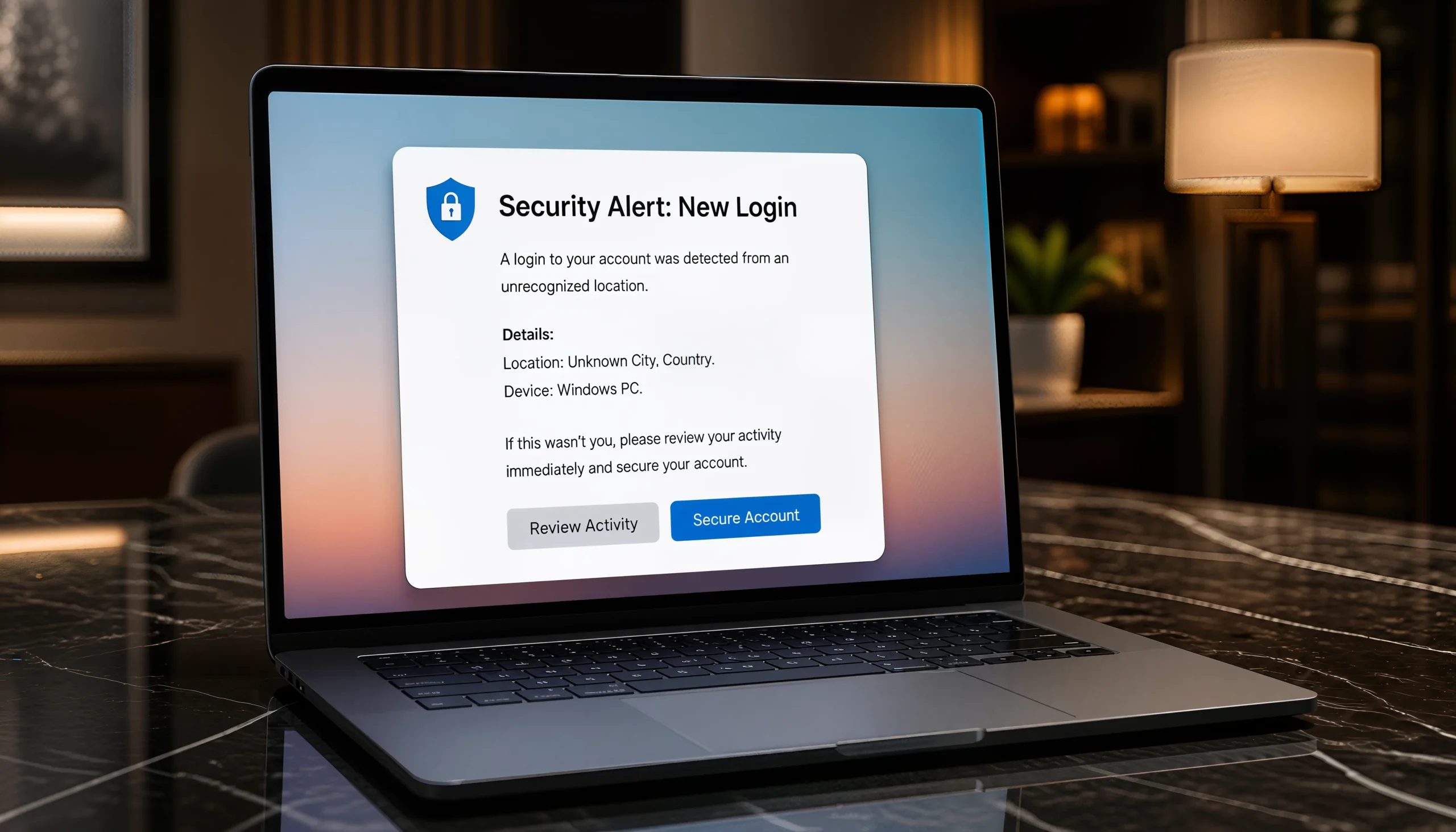
The Situation: Receiving an alert that your account (Google, Apple, Facebook, Microsoft, or others) was accessed from an unfamiliar city, country, or device is a meaningful security signal. Unexpected logins often indicate that someone may be attempting to use your digital identity. Treat these alerts calmly as a prompt to review your account activity, secure your credentials, and confirm your protection settings.

Why This Happens
Unexpected location alerts can occur for several reasons:
-
Password reuse: If one service is breached, attackers try your password on other platforms.
-
Phishing: Entering your password on a fake website.
-
VPN or proxy use: Your location may appear in another country.
-
Travel or roaming: Logging in from a new region triggers alerts.
-
Third-party data leaks: A service you use may have leaked your credentials.
-
Unsecured public Wi-Fi: Open networks expose login data.
-
Staying signed in: Shared devices may keep your session open.
-
Malware or spyware: Malicious software can record what you type.
Understanding these causes helps you respond calmly and effectively.
Common scenarios
Unexpected logins are not always attacks. They can be:
-
Location mismatches caused by VPNs.
-
Device fingerprint changes after updates.
-
IP address rotations by your internet provider.
-
Cloud synchronization events.
-
Apps connecting through your account (e.g., calendar, email, storage apps).
*Stay calm. An alert is a prompt to verify, not a confirmed threat.
Consider These Protective Measures
If you notice activity under the “Unknown Locations” section, independently and safely access your account or security settings without interacting with the alert displayed on the screen.
-
Review active sessions: Check where your account is currently signed in. Look for unfamiliar devices, browsers, or locations.
-
Action: Go to Account Settings → Security → Check Sign-in Activity.
-
Goal: Verify all devices and locations. If they match yours, your account is secure.
-
Terminate Suspicious Sessions: If anything looks unfamiliar, sign out of all active sessions right away. This immediately removes unauthorized access and restores control over your account.
-
How to end suspicious sessions
-
Action: Find the unknown entry and select “Sign out” or “Remove.”
-
Goal: Stops unauthorized access and protects your data.
-
Reinforce your Credentials: Change your password to a strong, unique one. Avoid reusing passwords across services.
-
Enable MFA / 2FA: Add a second verification step. Even if your password is exposed, your account remains locked.
-
Review Recent Activity: Check for unusual actions: password changes, recovery email edits, login attempts, or messages sent without your knowledge.
-
Update Recovery Information: Ensure your recovery phone and email are correct. This prevents attackers from locking you out.
-
Where to Check: Use the Digital Compass (Section 1: Security & Account Access) to locate account security settings and review active sessions, connected devices, and sign-in activity.
CAS Checklist: Account Security
1. Managing Active Sessions
-
[ ] Review active sessions: Go to Account Settings → Security → Sign-in Activity. Verify all devices, browsers, and locations match your habits.
-
[ ] Terminate suspicious sessions: If you spot an unknown entry, select Sign Out or Remove to revoke access immediately.
2. Strengthening Protection
-
[ ] Create strong passwords: Update your password to a unique, complex one to prevent issues across accounts.
-
[ ] Enable 2FA: Activate two-factor authentication. This acts as a second key, ensuring that even if someone knows your password, they cannot access your account.
3. Maintaining Account Health
-
[ ] Review recent activity: Check for unauthorized password changes or access attempts.
-
[ ] Update recovery info: Ensure your recovery phone number and email are current to prevent being locked out.
Quick Response Checklist
-
[ ] Did I log in from a new device?
-
[ ] Did I travel recently?
-
[ ] Did I use a VPN that changes my location?
-
[ ] Did I sign in from a friend’s computer?
-
[ ] Did I install a new app that uses my account?
-
[ ] Does the location look completely unfamiliar?
If the answer is yes to any of the first five questions, the alert may be normal. If there is no clear explanation for the activity, consider following the protective measures above.
Camera or Microphone Activated Without Your Intervention
The Situation: Seeing your device’s camera indicator light turn on, or noticing the microphone icon appear without opening any communication or media apps, is a meaningful privacy signal. While some apps may activate sensors for legitimate background functions, unexpected activation can also indicate unauthorized access or remote monitoring. Treat this as a prompt to review permissions calmly and confirm that your device is behaving as expected.
Consider These Protective Measures
-
Permission Awareness: Regularly review which apps have access to your camera and microphone. Revoke permissions for any app that does not require them for its intended purpose.
-
Physical Privacy Measures: Use a camera cover and mute your microphone when not in use. Physical barriers provide protection that software alone cannot guarantee.
-
System Integrity Check: If indicators activate unexpectedly, restart your device and observe whether the behavior continues.
-
Review Recent App Activity: Check recently installed or updated applications, especially those that request camera or microphone access without a clear reason.
-
Run a Malware Scan: Use trusted security software to check for malicious or unwanted applications that may be accessing device resources without your knowledge.
-
Keep Software Updated: Install operating system and application updates regularly to help maintain security, stability, and proper permission management.
-
Avoid Unknown Applications: Download apps only from official sources and review the developer information before installation.
-
Where to Check: Use the Digital Compass (Point 3: Managing Apps & Programs) to locate “App Permissions” and regain control over your sensors.
Additional Considerations
Understanding the Signal: A camera or microphone indicator turning on is not automatically a sign of danger. Many apps briefly activate these sensors for legitimate reasons such as voice commands, video previews, accessibility tools, or background checks. The key is simply confirming that the activation matches something you recently did.
If it does not, reviewing your permissions and checking which apps were active helps you quickly regain control. Staying aware of your recent actions keeps the situation in perspective and prevents unnecessary worry. You can use recent actions to verify whether the activation aligns with your activity.
Persistent Activation Check: Restart Your Device: If the camera or microphone indicator turns on again after restarting your device, take an additional step to confirm that everything remains under your control. Begin by reviewing your recent app activity and uninstalling any application you do not recognize or no longer use.
If the behavior continues, temporarily review or disable camera and microphone permissions for installed apps, then re-enable access only for applications you trust and understand. If needed, re-enable camera or microphone permissions for essential applications to ensure your device continues functioning normally.
This process helps identify which applications may be triggering sensor activity and supports better control over your device’s privacy settings.
Safe App Behavior: Choose apps that behave predictably. If an app frequently requests camera or microphone access without a clear reason, consider replacing it with a more privacy-respectful alternative. Apps that are transparent about their permissions tend to be safer and easier to manage. Selecting permission-light apps helps reduce unnecessary sensor activation.
One-Tap Sensor Check: On most devices, tapping the camera or microphone indicator shows which app is currently using the sensor. Use this feature whenever the indicator surprises you. It is the fastest way to identify the source and regain clarity without navigating through menus. You can quickly identify sensor usage and confirm whether the activation makes sense.
Quick Response Reminder: Unauthorized hardware activation is a breach of your digital boundaries. A calm response, reviewing permissions, checking recent activity, and using physical barriers, is the most effective way to restore privacy and maintain authority over your device. Staying methodical keeps you in control.
Pro Tip
Prefer apps that request only the permissions they truly need. Avoid granting access to contacts, microphone, camera, or files unless it is clearly necessary. Choosing permission-light apps is a simple and effective way to strengthen your privacy and reduce the chances of unexpected sensor activation.
Preventive Cybersecurity Checklist
This checklist represents the core of the Cyber Angel Security methodology. It focuses on Behavioral Security, empowering users through simple, consistent, and methodical actions.
1. Apps & Permissions
-
[ ] Install safely: Only download apps from official stores.
-
[ ] Limit access: Audit permissions regularly.
-
[ ] Watch weekly: Monitor sudden battery drain or slow performance.
-
[ ] Clean weekly: Remove apps you no longer use.
2. Passwords & Access
-
[ ] Strong passwords: Use unique combinations for every account.
-
[ ] Update promptly: Change passwords after unusual activity.
-
[ ] Activate 2FA: Add a “Second Key” to important accounts.
-
[ ] Check sessions: Log out of unfamiliar devices.
3. Phishing & Messages
-
[ ] Think before clicking: Treat unknown links as high-risk.
-
[ ] Verify sources: Contact official entities through known channels.
-
[ ] Report & delete: Remove suspicious messages immediately.
4. Device Health
-
[ ] Monitor energy: Identify apps consuming excessive battery.
-
[ ] Watch heat: Sudden overheating may indicate hidden processes.
-
[ ] Restrict background: Turn off GPS, Bluetooth, or sync when not needed.
5. Storage & Backups
-
[ ] Regular cleanup: Remove temporary files and cache.
-
[ ] Back up data: Use secure cloud or external drives.
-
[ ] Verify before deleting: Avoid removing system files unless certain.
6. Camera & Microphone
-
[ ] Audit access: Review camera and microphone permissions weekly.
-
[ ] Cover & restrict: Use physical covers and restrict sensor access.
-
[ ] Idle protection: Ensure no app records without consent.
7. Browser & Network
-
[ ] Clean browser: Remove unknown extensions.
-
[ ] Network security: Protect your home Wi-Fi with a strong password.
-
Secure connection:
[ ] Check lock icon
[ ] Verify website address
[ ] Avoid lookalike domains
[ ] Check HTTPS
[ ] Use bookmarks
[ ] Avoid email login links
8. Updates & Scans
-
[ ] Keep updated: Maintain the latest OS and app versions.
-
[ ] Regular scans: Use trusted tools to detect hidden threats.
-
[ ] Review alerts: Respond calmly through official settings.
Cyber Angel Security Guidelines
At Cyber Angel Security, we believe that the most powerful firewall is an informed human being. Our methodology is built on four core pillars inspired by globally recognized security standards to ensure your digital environment is safe, stable, and under your control.
-
Action Over Panic: Security alerts are signals, not threats. We prioritize calm verification and simple, methodical steps instead of fear-based reactions.
-
Behavioral Integrity: Your digital safety depends on your daily habits. We promote responsible maintenance and controlled system management, aligning with global standards (NIST, CISA, CERT) that emphasize understanding your digital environment before making any system change.
-
Privacy by Design: We advocate for Permission-Light living. Grant apps only the access they truly need. If an app or file is not essential, we guide you to remove it.
-
Personal Judgment: You are the best judge of your digital life. If something feels unusual or outside your routine, trust your instincts, review your activity calmly, and seek qualified guidance before making irreversible changes.